On Demand Scaling up resources for Oracle production workloads – Hot Add CPU and Hot Add Memory

The crux of this blog’s discussion is “How to stop hoarding much needed infrastructure resources and live wisely ever after by scaling up as needed effectively

Typically Oracle workloads running on bare metal environments , or for that matter any environment, are sized very conservatively, given the nature of the workload , with the premise that , in event of any workload spike, the abundant resources thrown at the workload will be able to sustain this spike, but in reality , we need to ask ourselves these questions

  • How much resource is actually allocated to the workload?
  • How much of that allocated resource is actually consumed by that workload ?
  • How often does the workload experience spikes?
  • If spikes are happening regularly then, has proper capacity planning and forecasting been done for this workload?

Proper plan and design along with capacity planning and forecasting is the key to manage any Business Critical Application (BCA) workload and there is no shortcut around this.

Unfortunately what this means in a physical environment is , for example, static allocation of resources to a BCA workload where the CPU utilization has been flat at 30-40% for 11 months of the year with utilization at 55-60% for the last month of the year.

Pre-allocating resources to a workload , in anticipation of peaks for say 1 month in a whole year, basically results in the resources underutilized for the rest of the year , starving other workloads of much needed resource, an ineffective way of resource allocation , thereby leading to increase in larger footprint of servers resulting in increase in CAPEX and OPEX.

Enter “Hot Plug” – “Hot Plug CPU and Hot Plug Memory” on vSphere Platform – Resource allocation on demand thereby resulting in effective and elastic resource management working on the principle of “Ask and thy shall receive”.


Continue reading

Posted in Oracle, VMware Hybrid Cloud | Comments Off on On Demand Scaling up resources for Oracle production workloads – Hot Add CPU and Hot Add Memory

The Art of P2V and Oracle ASM

“Come with me if you want to live” – famous words from the Terminator series.It’s also the very reason IT companies are adopting the ‘Virtualize First’ policy to reap all of the benefits of virtualization and move away from the soon to be legacy bare metal architecture world and ‘save a bunch of money’ , just as the Gecko said.
 

As part of the Virtualization journey, one of the tools VMware Professional Services (PSO), Partners and Customers use to migrate applications from physical x86 servers (Windows & Linux) to VMware Virtual Machine (VM) is using the VMware Convertor tool, the process known as P2V (Physical to Virtual). It transforms the Windows- and Linux-based physical machines and third-party image formats to VMware virtual machines.

One of the most common question I get talking the VMware field, Partners & Customers as part of my role is ‘Can I use VMware Convertor to migrate Oracle databases from physical x86 running  Linux / Oracle OVM running Linux to VMware vSphere platform ?’ , the answer, famous 2 words , ‘it depends !!’ .

Let me explain why I said that.


Database Re-Platforming

Oracle databases, being the sophisticated ‘beasts of burden’, there are many key factors to be kept in mind when we embark on an Oracle database re-platforming exercise, either between same / different system architectures, bare metal to bare metal / physical to virtual architecture, some of them include:

  • source and destination system architecture
    • are we moving between like architectures (x86 to x86)
    • are we moving between from a big endian system to a little endian system (Solaris / AIX / HP-UX to x86)
  • size and operating nature of the database (terabytes / production, pre-prod, dev, test etc)
  • database storage (File system / Oracle ASM)

More information on Handiness can be found in the link below
https://en.wikipedia.org/wiki/Endianness

So, if your use case is moving Oracle databases from a big endian system to a little endian system (Solaris / AIX / HP-UX to x86), Stop Right here, you cannot use the VMware Convertor tool to migrate databases between RISC Unix and Linux x86. You need an Oracle Plan and Design exercise to migrate Oracle databases between these 2 systems.

Keep reading if you are replatforming Oracle database between x86 platforms i.e. Physical server / Virtual machine (VMware vSphere / Oracle OVM) to VMware Virtual Machine (VMware).

Database Storage

One of the key factors in a database re-platforming exercise is the database storage migration.

Storage for a standalone Oracle database on Linux can be typically stored in

  • a standalone filesystem (e.g ext3 / ext4 / xfs / ocfs2 etc)
  • networked filesystem i.e NFS / Direct NFS (dNFS)
  • Oracle Automatic Store Management (ASM)


Oracle Automatic Store Management (ASM)

As we all know, Oracle technologies are getting sophisticated with every release and Oracle Automatic Store Management (ASM) released in version 10 has made databases performance and management more sophisticated.

Oracle ASM is Oracle’s recommended storage management solution that provides an alternative to conventional volume managers, file systems, and raw devices. Oracle ASM is a volume manager and a file system for Oracle Database files that supports single-instance Oracle Database and Oracle Real Application Clusters (Oracle RAC) configurations.

More information on Oracle ASM can be found in the link below
https://docs.oracle.com/database/122/OSTMG/asm-intro.htm#OSTMG036


VMware Convertor

Let’s look at the capabilities of the VMware Convertor tool.

More information about the VMware Convertor can be found at
https://www.vmware.com/support/pubs/converter_pubs.html


Capabilities of VMware Convertor

You can use Converter Standalone to perform a number of conversion tasks.

  • Import running remote physical and virtual machines as virtual machines to standalone ESX/ESXi or to ESX/ESXi hosts that vCenter Server manages.
  • Import virtual machines hosted by VMware Workstation or Microsoft Hyper-V Server to ESX/ESXi hosts that vCenter Server manages.
  • Export virtual machines managed by vCenter Server hosts to other VMware virtual machine formats.


Supported source O/S for P2V

Converter Standalone supports Windows and Linux operating systems as sources for powered-on-machine conversions and virtual-machine conversions.


Supported modes for P2V

Converter Standalone supports disk-based cloning, volume-based cloning, and linked-cloning modes.

Volume-based cloning

  • Volumes from the source machine are copied to the destination machine.
  • Converter Standalone supports volume-based cloning during hot cloning, and during the import of existing virtual machines.
  • During volume-based cloning, all volumes in the destination virtual machine, except LVM2 logical volumes, are converted to basic volumes, regardless of their type in the corresponding source volume. LVM2 logical volumes can be preserved as logical volumes during conversion.
  • Volume-based cloning is performed at the file level or block level, depending on the destination volume size that you select.

More information can be found at
https://www.vmware.com/pdf/convsa_61_guide.pdf


Disk-Based Cloning

Converter Standalone supports disk-based cloning to import existing virtual machines. Disk-based cloning transfers all sectors from all disks and preserves all volume metadata. The destination virtual machine receives partitions of the same type, size, and structure, as the partitions of the source virtual machine. All volumes on the source machine’s partitions are copied as they are. Disk-based cloning supports all types of basic and dynamic disks.


From what we could gather

VMware Convertor will perform an online volume based file level P2V migration from a physical Linux server to virtual Linux server of as long as

  • the physical Linux server is powered on
  • cloning is Volume based cloning at file level i.e. a mounted/visible volume/file system only, no raw disks

Powered on Option

Powered off option


Potential Oracle Migration Issue

  • Migration of Oracle database using Oracle Automatic Storage (ASM) may be an issue here as it’s an Oracle representation of RAW without any visible volume and file system, does VMware Convertor address Linux raw devices?


VMware Convertor Cold Clone

In order to migrate the physical Linux server as is which included any raw disk and all , is to use the VMware Convertor Cold Clone (coldclone.3.03.iso). Unfortunately, the last version that was released was for vSphere 4.1, Cold Clone 3.0.3.

The Cold Clone ISOs have been discontinued and support has been removed from VMware. and all support to the Cold Clone product is stopped. For the strong hearted, you can fiddle around with the Cold Clone ISO from the below links

https://www.vladan.fr/free-tools-vmware

More information about the VMware Convertor Cold Clone can be found at
https://www.vmware.com/pdf/convsa_50_guide.pdf


Use Case – Migrate from Physical Linux / Oracle OVM running Linux to VMware vSphere

The goal of this exercise is to find out if we can migrate a database running on a Physical server / Virtual Server (VMware/Oracle OVM) running Linux O/S to vSphere Virtual Machine (VM) running Linux O/S with the source database storage either on

  • a filesystem (e.g ext3 / ext4) or
  • Oracle Automatic Store Management (ASM)


Key things to keep in mind

  • Customers demand no change to be made to their source system as part of this P2V, the migration should be seamless to them
  • Migrating a database running on a Physical server / Virtual Machine (on VMware/Oracle OVM) running Linux O/S to a Virtual Machine (VM) running Linux O/S with the NFS as database storage is an easy migration from a storage perspective


Oracle Virtual Machine (OVM)

Oracle VM is a platform provided by Oracle Corporation that provides an environment for running Oracle Virtual Machines (OVM).

For all migration purposes of Oracle OVM to VMware vSphere, treat the OVM machine as a physical server and perform the P2V ie bring up the Oracle VM on the Oracle VM Server and perform a P2V treating it as a physical server.

More information about the Oracle VM can be found at
https://docs.oracle.com/cd/E64076_01


Oracle VM 3.4.4. Architecture

The components of an Oracle VM 3.4.4. environment is as shown below.

https://docs.oracle.com/cd/E64076_01/E64081/html/vmcon-ovm-arch.html

Oracle VM Manager is used to manage Oracle VM Servers, virtual machines, and resources. Oracle VM Manager is usually hosted on a standalone computer.

Oracle VM Server is a managed virtualization environment providing a server platform which runs virtual machines, also known as domains.

Oracle VM Manager communicates with each Oracle VM Server via the Oracle VM Agent.


Lab Setup – Oracle VM Server and Oracle VM Manager

The example shown below is a P2V exercise of 2 Oracle databases running in Oracle VM 3.4.4 on OEL 7.3

  • ‘DB1’ using Oracle ASM as database storage
  • ‘DB2’ using ext4 filesystem as database storage

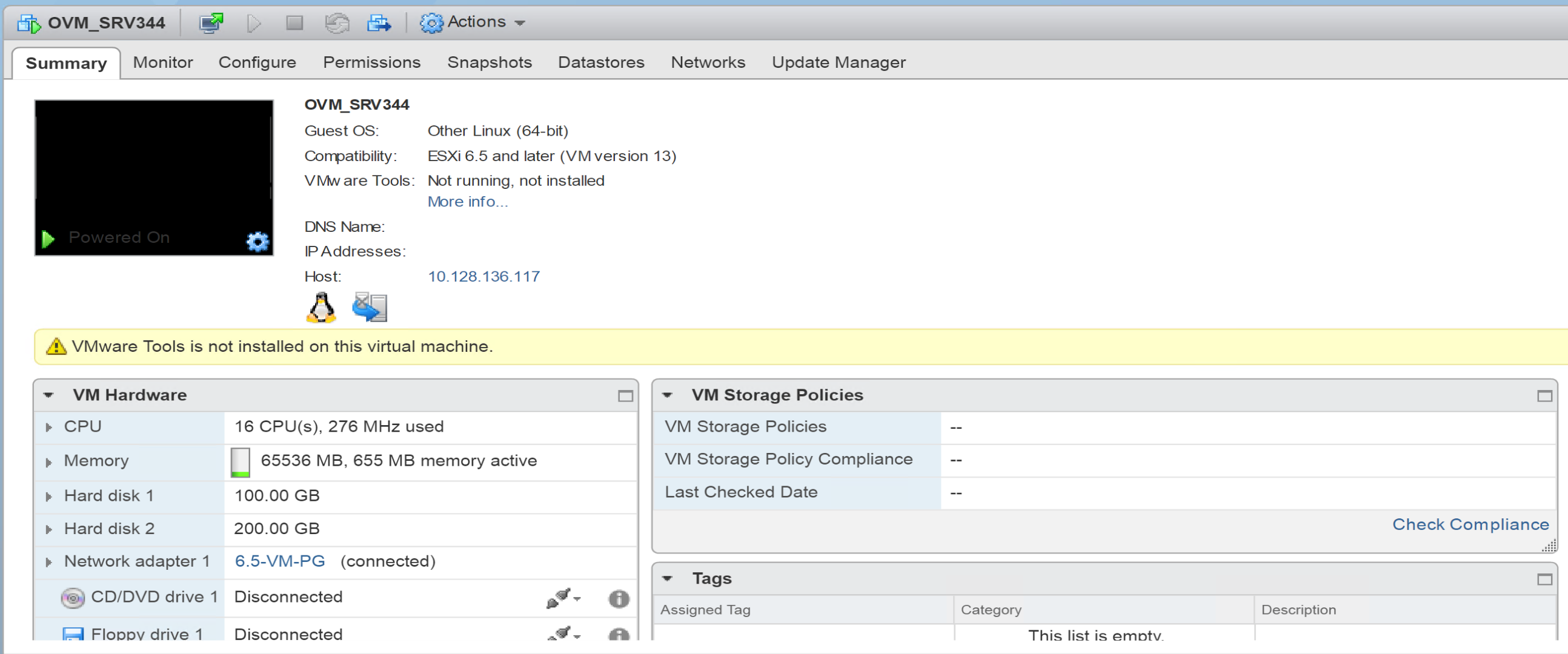
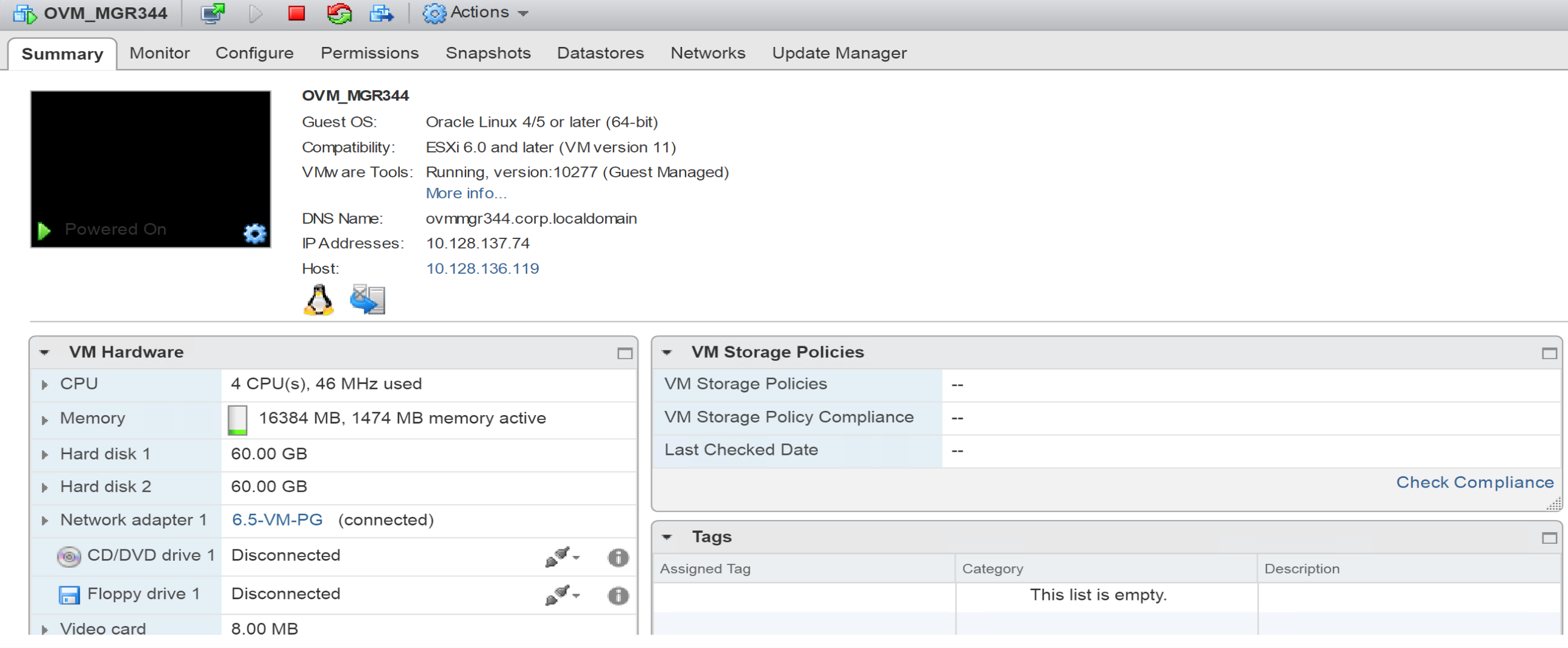
Both Oracle VM Server ‘OVM_SERV344’ and Oracle VM Manager ‘OVM_MGR344’ are embedded in vSphere VM’s as part of the setup.

A vSphere VM named ‘OVM_SERV344’ running Oracle VM Server 3.4.4 was setup as per Oracle documentation, with 16 vCPU, 64 GB RAM.

The Oracle VM agent is also installed in the same VM as the VM server.

(Ignore the VMware tools warning, we are more interested in the OVM migration aspect of this exercise)

A vSphere VM named ‘OVM_MGR344’ running Oracle VM Manager 3.4.4 was setup as per Oracle documentation, with 4 vCPU, 16 GB RAM.

A guest VM ‘OL73’ is created in the Oracle OVM 3.4.4 environment (Oracle VM Server) running O/S OEL 7.3 and Oracle Database 12.2 software.

The OVM ‘OL73’ VM has the below storage

  • 30GB for O/S and Oracle binaries (GI/RDBMS)
  • 20GB for an ext3 Filesystem housing a database ‘DB1’ datafiles
  • 25GB for Oracle ASM storage housing a database ‘DB2’ datafiles


OS disks

[root@ora73 ~]# fdisk -lu
….
Disk /dev/xvda: 32.2 GB, 32212254720 bytes, 62914560 sectors
Units = sectors of 1 * 512 = 512 bytes
Sector size (logical/physical): 512 bytes / 512 bytes
I/O size (minimum/optimal): 512 bytes / 512 bytes
Disk label type: dos
Disk identifier: 0x000b5739

Device Boot      Start         End      Blocks   Id  System
/dev/xvda1   *        2048     2099199     1048576   83  Linux
/dev/xvda2         2099200    62914559    30407680   8e  Linux LVM
….
Disk /dev/xvdb: 21.5 GB, 21474836480 bytes, 41943040 sectors
Units = sectors of 1 * 512 = 512 bytes
Sector size (logical/physical): 512 bytes / 512 bytes
I/O size (minimum/optimal): 512 bytes / 512 bytes
Disk label type: dos
Disk identifier: 0xe2e5cd88

Device Boot      Start         End      Blocks   Id  System
/dev/xvdb1            2048    41943039    20970496   83  Linux
….
Disk /dev/xvdc: 26.8 GB, 26843545600 bytes, 52428800 sectors
Units = sectors of 1 * 512 = 512 bytes
Sector size (logical/physical): 512 bytes / 512 bytes
I/O size (minimum/optimal): 512 bytes / 512 bytes
Disk label type: dos
Disk identifier: 0x362c02ac

Device Boot      Start         End      Blocks   Id  System
/dev/xvdc1            2048    52428799    26213376   83  Linux
……
[root@ora73 ~]#


Partition / Volume / Filesystem Layout

[root@ora73 ~]# lsblk
NAME                      MAJ:MIN RM SIZE RO TYPE MOUNTPOINT
xvda                      202:0    0  30G  0 disk
├─xvda1                   202:1    0   1G  0 part /boot
└─xvda2                   202:2    0  29G  0 part
├─ol-root               249:0    0  26G  0 lvm  /
└─ol-swap               249:1    0   3G  0 lvm  [SWAP]
xvdb                      202:16   0  20G  0 disk
└─xvdb1                   202:17   0  20G  0 part
└─vg_u01-LogVol_u01     249:2    0  20G  0 lvm  /u01
xvdc                      202:32   0  25G  0 disk
└─xvdc1                   202:33   0  25G  0 part
xvdd                      202:48   0  25G  0 disk
└─xvdd1                   202:49   0  25G  0 part
└─vg_dbmnt-LogVol_dbmnt 249:3    0  20G  0 lvm  /dbmnt
[root@ora73 ~]#


Oracle ASM disk

[root@ora73 ~]# /usr/sbin/oracleasm listdisks
DATA_DISK01
[root@ora73 ~]#

Lab Setup:

  1. 2 Oracle databases exists on an OVM Linux ‘ora73’ , DB1 and DB2
  2. Database ‘DB1 uses Oracle ASM as storage
  3. Database ‘DB2’ uses ext4 File system as storage
  4. Boot partition is on /dev/xvda1 in OVM VM i.e. separate partition, no volume or LVM
  5. Oracle binaries are under /u01 (/dev/xvdb1)
  6. ‘DB1’ database storage is on Oracle ASM (ASM disk ‘DATA_DISK01’) which is on /dev/xvdc1
  7. ‘DB2’ database storage is on ex4 file system ‘/dbmnt’ which is on /dev/xvdd1


Red Hat 7 / OEL 7 Recommended Partitioning Scheme

Red Hat recommends that you create separate file systems at the following mount points on AMD64 and Intel 64 systems:

  • /boot – recommended size at least 1 GB
  • / (root)
  • /home
  • swap

The partition mounted on /boot contains the operating system kernel, which allows your system to boot Red Hat Enterprise Linux, along with files used during the bootstrap process. Unlike other mount points, using an LVM volume for /boot is not possible – /boot must be located on a separate disk partition.

https://access.redhat.com/documentation/en-us/red_hat_enterprise_linux/7/html/installation_guide/sect-disk-partitioning-setup-x86#sect-custom-partitioning-x86


P2V Steps

  1. Start VMware Convertor tool

Remember to enable root login over SSH for Oracle OVM ‘ora73’.

https://access.redhat.com/documentation/en-US/Red_Hat_Enterprise_Linux/6/html/V2V_Guide/Preparation_Before_the_P2V_Migration-Enable_Root_Login_over_SSH.html

2. Click ‘Convert Machine’ tab on menu

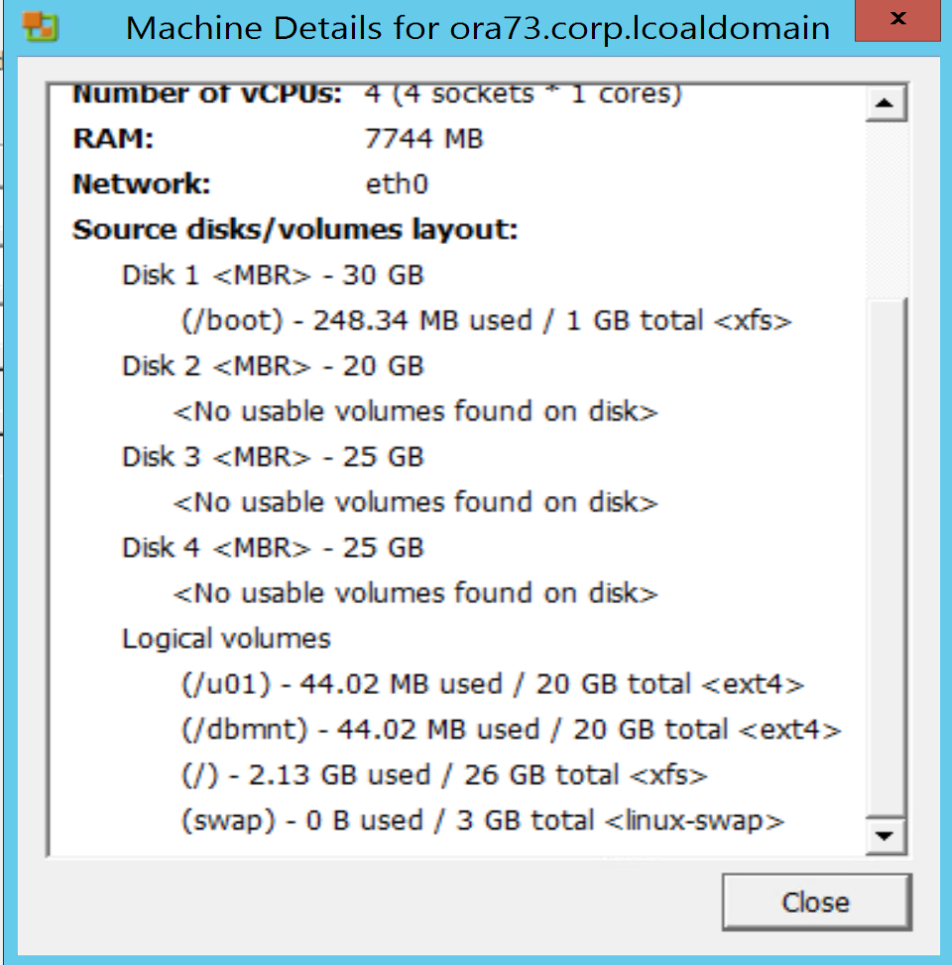
Select ‘Powered on’ & ‘Remote Linux Machine’ , Click on ‘view source details’

Press ‘Close’ , enter root password for ‘OL73’ and Press ‘Next’

3. Select ‘folder’ where you want to place the VM

Choose ‘ora73_p2v’ as the destination VM, as I had a common DNS server in my lab, I ran into DNS issues and hence decided to go with a different VM name.

4. Select the destination Datastore for the VM

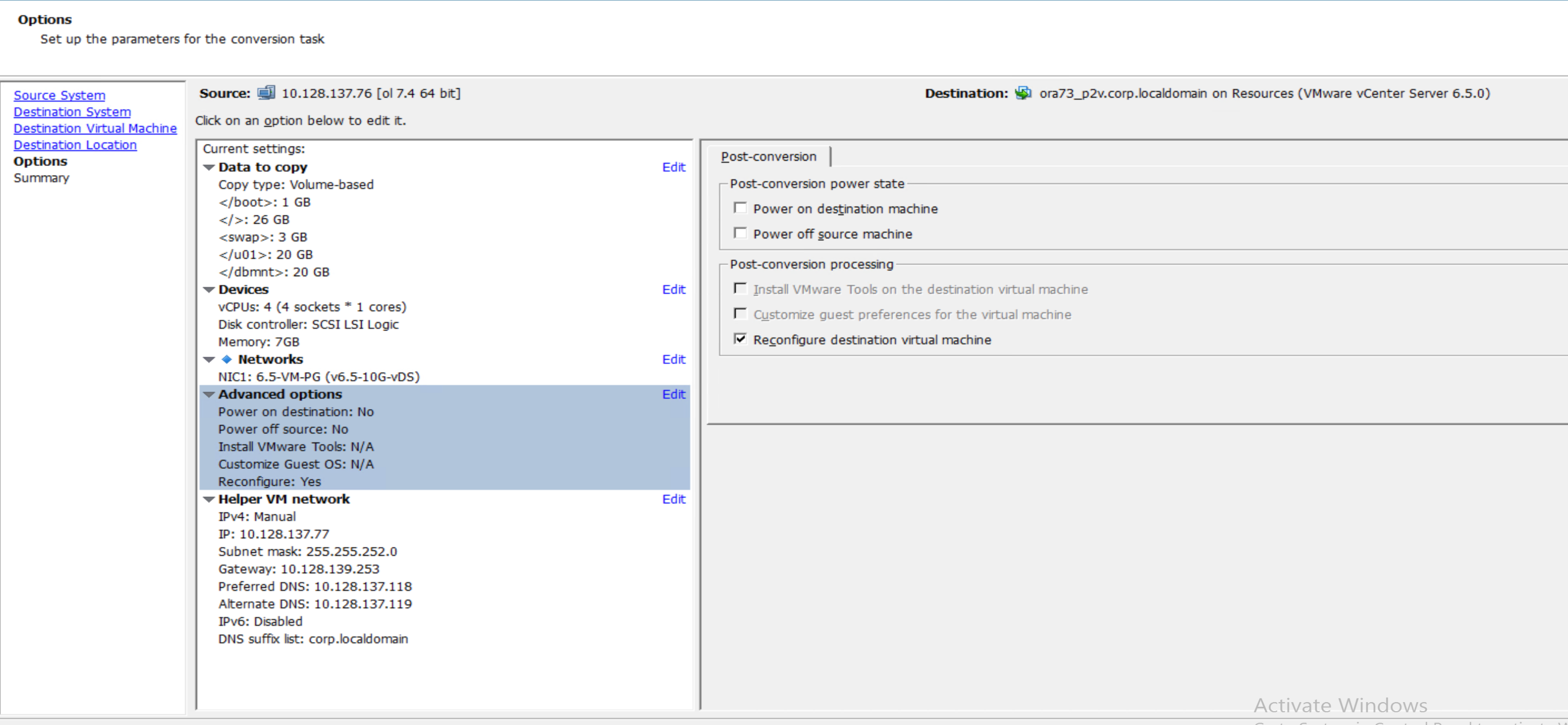
5. Edit the options and review the destination partition / volume layout options. Click on advanced. After re-arranging  the designation layout to match the source , the final layout looks like

Key Observations from GUI

  • /boot is allocated as a partition on its own disk ie /sda1 (VirtualDisk1)
  • No option to leave /boot as a partition with /(root) & swap on same disk as in source
  • Root (/) and Swap are assigned to a LVM on a different disk (VirtualDisk2)
  • /u01 is on a separate disk as source (VirtualDisk3)
  • /dbmnt is on a separate disk as source (VirtualDisk4)
  • Where is the Oracle ASM disk i.e. source disk /dev/ xvdc1? We do not see it here?

6. Proceeding with the rest of the steps, adjust the vCPU and Memory allocations as needed

PVSCSI drivers would have to be installed via VMware Tools after the VM is created.

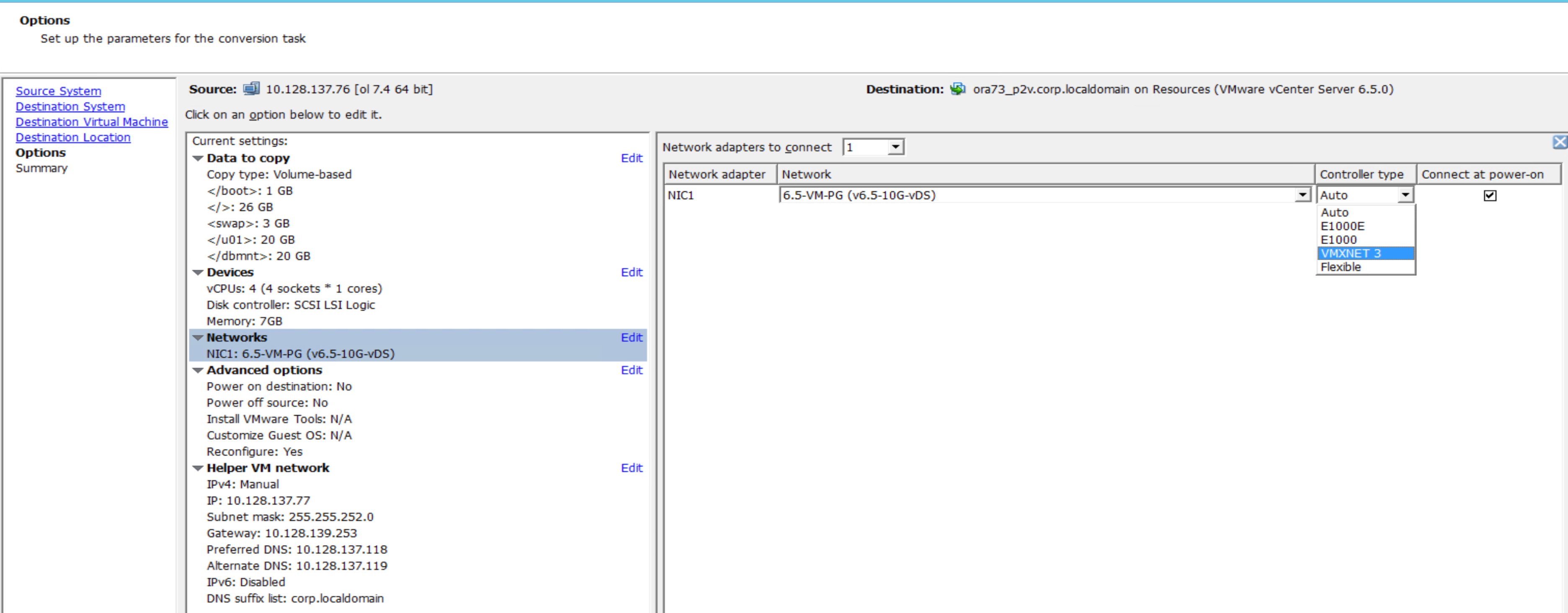
7. Choose appropriate network adapters

VMXNET3 network adapter is available as target network adapter.

8. Option of powering off source or destination machines

9. Setup destination Networking

Turn off IPV6 if needed

Setup search domains

10. Confirm

11. Submit Job

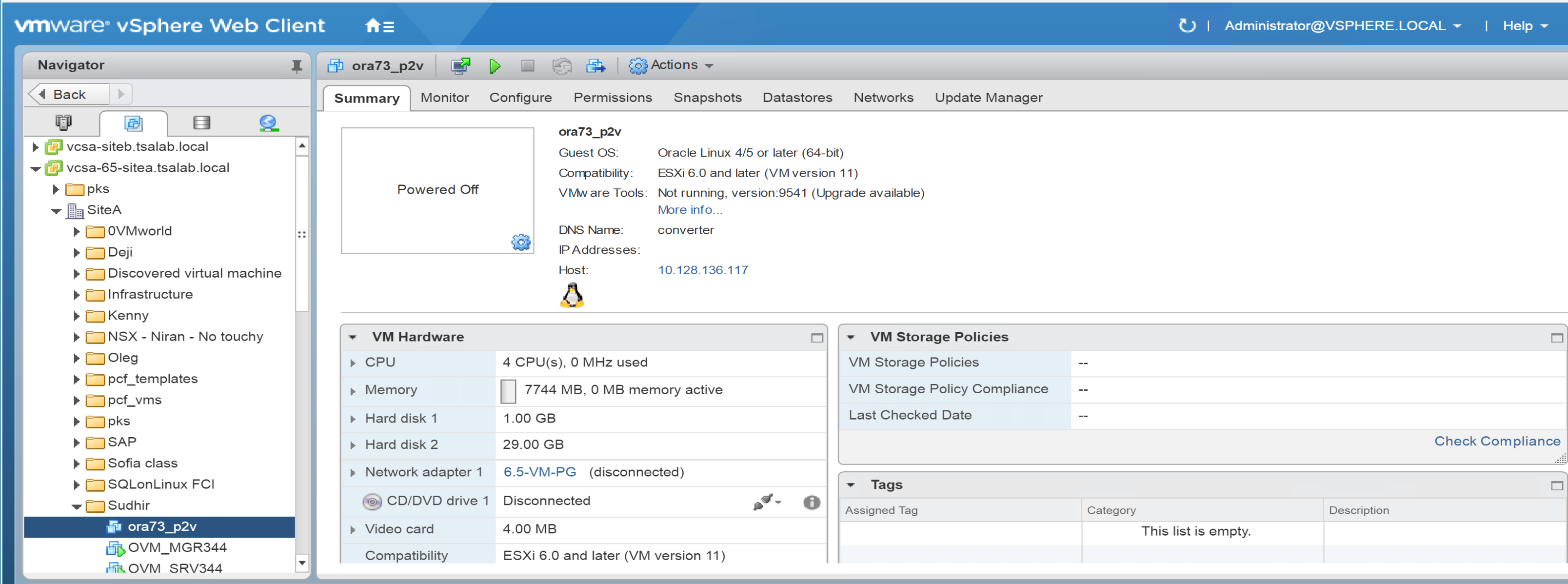
12. Destination VM created. Power it up

13. Check out the partitions / volumes on the target VM

[root@ora73 ~]# lsblk
NAME                    MAJ:MIN RM  SIZE RO TYPE MOUNTPOINT
sda                       8:0    0    1G  0 disk
└─sda1                    8:1    0    1G  0 part /boot
sdb                       8:16   0   29G  0 disk
└─sdb1                    8:17   0   29G  0 part
├─vg_u01-root         249:2    0   26G  0 lvm  /
└─vg_u01-swap         249:3    0    3G  0 lvm  [SWAP]
sdc                       8:32   0   20G  0 disk
└─sdc1                    8:33   0   20G  0 part
└─vg_dbmnt-LogVol_u01 249:1    0   20G  0 lvm  /u01
sdd                       8:48   0   20G  0 disk
└─sdd1                    8:49   0   20G  0 part
└─ol-LogVol_dbmnt     249:0    0   20G  0 lvm  /dbmnt
sr0                      11:0    1 1024M  0 rom
[root@ora73 ~]#

Key Observations from Target VM

  • /boot is allocated as a partition on its own separate disk i.e. /sda1
  • Root (/) and Swap are assigned to a LVM on a different disk (sdb)
  • /u01 is on a separate disk as source (sdc)
  • /dbmnt is on a separate disk as source (sdd)
  • ASM disk is missing and so database ‘DB1 which uses Oracle ASM as storage is not available at destination VM i.e. /dev/xvdc1 is not P2Ved over
  • Database ‘DB2’ which uses ext4 File system as storage is brought over to the destination VM

Reason for Oracle ASM disks not P2Ved over

Basically, the p2v process will not p2v the ASM disks because they aren’t mounted filesystems i.e. no volumes created on them.

In order to get the contents of the raw disk i.e. ASM in this case, to the target vSphere VM

  • Use VMware Convertor Cold Clone if possible
  • If VMware Convertor Cold Clone is not possible
    o             Shutdown ‘DB2’ on physical sever & add ASM disk of physical server as physical RDM to target VM
    o             Create new ASM disk group on target and add the new p-rdm to it
    o             Create and add new vmdk/s to newly created Oracle ASM disk group
    o             Use ASM rebalance method to relocate ASM disk extents from p-rdm to vmdk
    o             Offline drop ASM disks related to the p-rdm
    o             Remove and reclaim the p-rdm


Key points to take away from this blog

  • VMware Convertor tool transforms your Windows- and Linux-based physical machines and third-party image formats to VMware virtual machines.
  • Hot cloning method using volume based cloning at file level does not bring over raw disks from source server to target VM
  • Hot cloning method using volume based cloning at block level is only supported for Windows
  • Disk-based cloning is supported for existing virtual machines.
  • Cold clone will bring over the source VM to the target vSphere platform as is but cold clone is currently de-supported


Conclusion

VMware Convertor tool is one of most widely used tools in the industry today to migrate applications from physical servers to VMware Virtual Machine (VM) , the process known as P2V (Physical to Virtual).

It has certain limitations porting over Linux raw disks when using hot cloning method using volume based cloning at file level for powered on physical Linux servers. However cold cloning will ensure the resulting virtual machine is an exact replica of the source physical machine.

For Oracle ASM portability, use VMware Convertor cold clone method or use Oracle ASM rebalance method as explained above.

Posted in Oracle, VMware Hybrid Cloud | Comments Off on The Art of P2V and Oracle ASM

Oracle RAC on VMware Cloud on Amazon AWS

Summary

With the recent launch of the VMware Cloud on AWS Software Defined Data Center (SDDC) from VMware, many Business Critical Application (BCA) workloads that were previously difficult to deploy in the cloud no longer require significant platform modifications.

This post describes a Better Together demonstration VMware and AWS presented at VMworld 2017 using an Oracle RAC Database for high-availability zero-downtime client connection failover, supporting a Django-Python application running in a Native AWS Elastic Beanstalk environment.

Oracle RAC presents two requirements that are difficult to meet on AWS infrastructure:

  • Shared Storage
  • Multicast Layer 2 Networking.

VMware vSAN and NSX deployed into the VMware SDDC cluster meet those requirements succinctly.

The Django-Python application layer’s end-to-end provisioning is fully automated with AWS Elastic Beanstalk, which creates one or more environments containing the necessary Elastic Load Balancer, Auto-Scaling Group, Security Group, and EC2 Instances each complete with all of the python prerequisites needed to dynamically scale based on demand.  From a zip file containing your application code, a running environment can be launched with a single command.

By leveraging the AWS Elastic Beanstalk Service for the application tier, and VMware Cloud on AWS for the database tier, this end-to-end architecture delivers a high-performance, consistently repeatable, and straightforward deployment.  Better Together!

Architecture

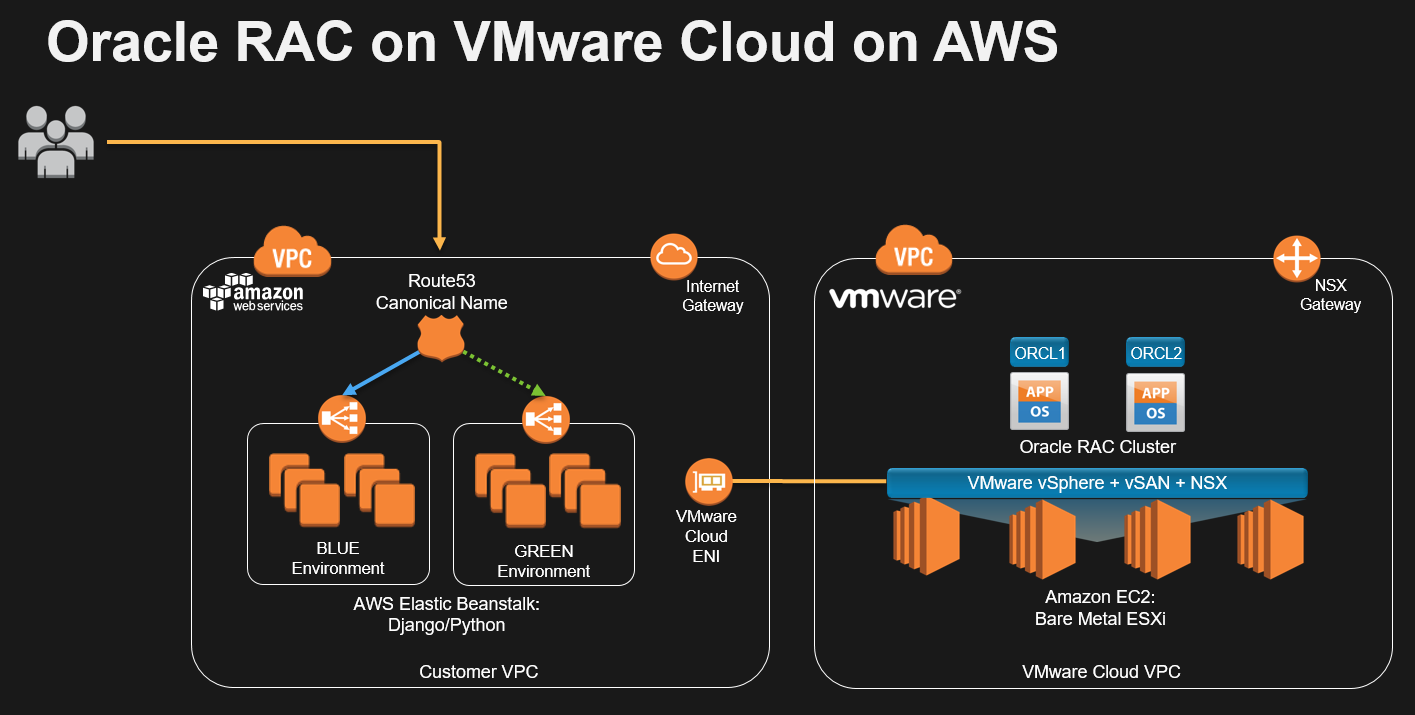
In the layout above, on the right, VMware Cloud on AWS is provided by VMware directly.  For each Software Defined Data Center (SDDC) cluster, the ESXi hypervisor is installed on Bare Metal hardware provided by AWS EC2, deployed into a Virtual Private Cloud (VPC) within an AWS account owned by VMware.

Each EC2 physical host contributes 8 internal NVMe high performance flash drives, which are pooled together using VMware vSAN to provide shared storage.  This service requires a minimum number of 4 cluster nodes, which can be scaled online (via portal or REST API) to 16 nodes at initial availability, with 32 and 64-node support to follow shortly thereafter.

VMware NSX provides one or more extensible overlay logical networks for Customer virtual machine workloads, while the underlying AWS VPC CIDR block provides a control plane for maintenance and internal management of the service.

All of the supporting infrastructure deployed into the AWS account on the right side of the diagram is incorporated into a consolidated hourly or annual rate to the Customer from VMware.

In the layout above, on the left, a second AWS account directly owned by the Customer is connected to the VMware owned SDDC account for optionally consuming Native AWS services alongside deployed vSphere resources (right).

When initially deploying the VMware Cloud on AWS SDDC cluster, we need to provide temporary credentials to login to a newly created or existing Customer managed AWS account.  The automation workflow then creates an Identity and Access Management (IAM) role in the Customer AWS account (left), and grants account permissions for the SDDC to assume the role in the Customer AWS account.

This role provides a minimal set of permissions necessary to create Elastic Network Interfaces (ENIs) and route table entries within the Customer AWS account to facilitate East-West routing between the Customer AWS Account’s VPC CIDR block (left), and any NSX overlay logical networks the Customer chooses to create in the SDDC account for VM workloads (right).

The East-West traffic within the same Availability Zone provides extremely low latency free of charge, enabling the Customer to integrate technology from both vSphere and AWS within the same application, choosing the best of both worlds.

Oracle RAC Configuration

Database workloads are typically IO latency sensitive.  Per VMware KB article 2121181, there are a few recommendations to consider for significantly improving disk IO performance.


Below is the disk setup for Oracle RAC Cluster using VMware multi-writer setting which allows disks to be shared between the Oracle RAC nodes.

The Oracle Databases on VMware Best Practices Guide provides best practice guidelines for deploying Oracle Single Instance and Oracle RAC cluster on VMware SDDC.

https://www.vmware.com/content/dam/digitalmarketing/vmware/en/pdf/solutions/vmware-oracle-databases-on-vmware-best-practices-guide.pdf

For the VMworld demo, the OCI compliant Oracle Instant Client was wrapped with the cx_Oracle python library, and Oracle’s Database Resident Connection Pooling (DRCP).  Database connections are initially evenly balanced between the ORCL1 and ORCL2 instances serving a custom Database Service named VMWORLD.

By failing the database service on a given node, we demonstrate that only 50% of client connections are affected, all of which can immediately reconnect to the surviving instance.

An often overlooked challenge with Oracle RAC is that client connections do not automatically fail back after repairing the failure.  Those client connections must be recycled at the resource pool level, which might require an application outage if only one pool was included in the design.  Multiplexing requests over two connection pools in your application code allows each pool to be iteratively taken out of service without taking the application down.

Given such application design changes often are not tenable post-deployment, AWS Elastic Beanstalk makes quick work of that limitation by simply deploying a GREEN copy of your application environment, validating it passes health-checks, and then transitioning your Customer workload from BLUE to GREEN stacks.  When the GREEN stack boots, its database connections will be properly balanced between instances as desired, after which the BLUE stack can then be safely terminated.  Similarly, application code changes can be deployed using the same BLUE/GREEN methodology, affording rapid rollback to the original stack if problems are encountered.  As many additional stacks can be deployed with a single command, “eb create GREEN”, or automated via REST-API.

At VMworld, we ran a live demo continuously failing each database service iteratively followed by an Elastic Beanstalk environment URL swap between BLUE and GREEN every 60 seconds, while monitoring Oracle’s GV$CPOOL_CC_STATS data dictionary view.  The ClassName consists of the database service name VMWORLD, followed by the Beanstalk environment name, and the application server’s EC2 instance identifier.  The second and subsequent columns of the below table indicate the RAC node servicing queries between refresh cycles.

Conclusion

 VMware Cloud on AWS affords many Better Together opportunities to not only streamline operational processes by leveraging Native AWS services, but also enable a cloud-first IT transformation without needing to disruptively re-platform your Enterprise Business Critical Applications.

The cloud based SDDC cluster deployment is simply another datacenter and cluster managed in the same way you manage your on-premises VMware environments today, without needing to retool or retrain staff.

Creating and expanding SDDC clusters can be accomplished in minutes, allowing you to drive utilization to a much higher efficiency without concern for 18-24 month capacity planning cycles that must be budgeted for peak usage.  Release burst capacity immediately after it is no longer needed without any CAPEX overhead, as well as the OPEX overhead of running your own datacenters.

Demo for the “Oracle RAC on VMware Cloud on Amazon AWS” can be found in the url below
https://www.youtube.com/watch?v=vpU0MW8tkhc

All Oracle on VMware SDDC collaterals can be found in the url below

Oracle on VMware Collateral – One Stop Shop
https://blogs.vmware.com/apps/2017/01/oracle-vmware-collateral-one-stop-shop.html

More information on VMware Cloud on AWS can be found at the url below
https://blog.cloud.vmware.com/s/services-and-products-vmware-cloud-on-aws

Posted in Oracle, VMware Hybrid Cloud | Comments Off on Oracle RAC on VMware Cloud on Amazon AWS

“RAC” n “RAC” all night – Oracle RAC on VMware vSphere – discuss Storage Options and How to Hot add clustered disks online

“I wanna “RAC” and “RAC” all night and party every day” – mantra of an Oracle RAC DBA.


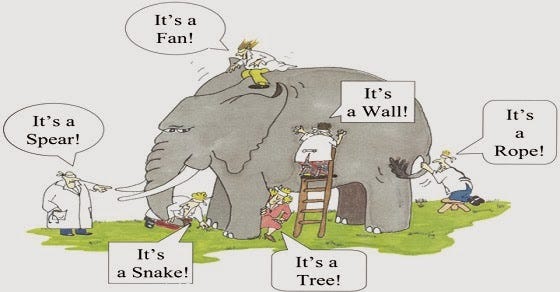
The parable of the Blind men and the elephant have  been oft quoted , one of the lessons learned from this story is , unless one understands the concepts of running Oracle RAC on VMware vSphere platform correctly, there is always a chance one could run into issue caused because of misconceptions.

Deploying Oracle RAC on physical architecture is subjected to challenges like those running Oracle non-RAC on physical architecture. These challenges include but are not exclusive to hardware failure due to a failed component, power outage, and complete hardware meltdown.

Providing high availability in these environments presents a significant challenge for business organizations. Hardware issues negate the inherent value proposition of Oracle RAC, which is to provide application-level high availability with sustained infrastructure high availability.

With VMware vSphere, customers have successfully run business-critical, high performance demanding Oracle workloads for many years. VMware vSphere provides high availability natively at the infrastructure level and is completely complementary to the application level high availability that Oracle RAC provides.

This blog attempts to describe the anatomy of an Oracle RAC setup and showcase the Virtual Machine  components  which are part of the Oracle RAC setup.

This blog will point to sections of already published RAC blogs  and “Oracle VMware Hybrid Cloud High Availability Guide – REFERENCE ARCHITECTURE “ in order to explain various concepts.

This blog also showcases how to hot add Clustered / Shared vmdk’s to Oracle RAC online.

This is purely a technical blog and is not related to any RAC support related discussion.


Concepts and Misconception


Much has been written , spoken and probably beaten to senseless about the magical “multi-writer” setting and how it helps multiple VM’s share vmdk’s simultaneously for Clustering and FT used cases.


I still get question from customers interested in running Oracle RAC on vSphere about –

-if we have the ability to add shared vmdk’s to a RAC cluster online without any downtime ? Yes we do.

-Are the steps of adding shared vmdk’s to an extended RAC cluster online without any downtime the same? Yes.


Introduction

By default, the simultaneous multi-writer “protection” is enabled for all. vmdk files ie all VM’s have exclusive access to their vmdk files. So in order for all of the VM’s to access the shared vmdk’s simultaneously, the multi-writer protection needs to be disabled.

The below table describes the various Virtual Machine Disk Modes:


As we all are aware of , Oracle RAC requires shared disks to be accessed by all nodes of the RAC cluster.

KB Article 1034165 provides more details on how to set the multi-writer option to allow VM’s to share vmdk’s. Requirement for shared disks with the multi-writer flag setting for a RAC environment is that the shared disk is

  • has to set to Eager Zero Thick provisioned
  • need not be set to Independent persistent


Continue reading

Posted in Oracle, VMware Hybrid Cloud | Comments Off on “RAC” n “RAC” all night – Oracle RAC on VMware vSphere – discuss Storage Options and How to Hot add clustered disks online

To be “RDM for Oracle RAC”, or not to be, that is the question

Famous words from William Shakespeare’s play Hamlet. Act III, Scene I.

This is true even in the Virtualization world for Oracle Business Critical Applications where one wonders which way to go when it comes to provisioning shared disks for Oracle RAC disks, Raw Device Mappings (RDM) or VMDK ?

Much has been written and discussed about RDM and VMDK and this post will focus on the Oracle RAC shared disks use case.

Some common questions I get talking to our customer who are embarking on the virtualization journey for Oracle on vSphere are

  • What is the recommended approach when it comes to provisioning storage for Oracle RAC or Oracle Single instance? Is it VMDK or RDM?
  • What is the use case for each approach?
  • How do I provision shared RDM (s)  in Physical or Virtual Compatibility mode for an Oracle RAC environment?
  • If I use shared RDM (s)  (Physical or Virtual) will I be able to vMotion my RAC VM ’s without any cluster node eviction?’


Continue reading

Posted in Oracle, VMware Hybrid Cloud | Comments Off on To be “RDM for Oracle RAC”, or not to be, that is the question

Oracle on vSAN HCI – VMworld 2017

Interested to find out how VMware HCI vSAN solution provides high availability, workload balancing, seamless site maintenance, stability, resilience, performance and cost effective hardware required to meet critical business SLA’s for running mission critical workloads?

Come attend our session at VMworld 2017 Las Vegas on Wednesday, Aug 30, 2:30 p.m. – 3:30 p.m. where Sudhir Balasubramanian and Palanivenkatesan Murugan will talk about the VMware HCI vSAN solution for Mission Critical Oracle workloads

This session will showcase deployment of Oracle Clustered and Non Clustered databases along with running IO intensive workloads on vSAN and also talk about seamlessly running database day 2 operations like Backup & Recovery, Database Cloning , Data Refreshes , Database Patching etc using vSAN capability.

Signup for our session here
https://my.vmworld.com/scripts/catalog/uscatalog.jsp?search=STO1167BU&showEnrolled=false

Posted in Oracle, VMware Hybrid Cloud | Comments Off on Oracle on vSAN HCI – VMworld 2017

Streamlining Oracle on SDDC – VMworld 2017

Interested to find out how to streamline your Business Critical Applications on VMware Software-Defined Datacenter (SDDC) seamlessly?

Come attend our session at VMworld 2017 Las Vegas on Thursday, Aug 31, 1:30 p.m. – 2:30 p.m. where Amanda Blevins and  Sudhir Balasubramanian will talk about the end to end life cycle of an Application on VMware SDDC.

This includes provisioning, management, monitoring, troubleshooting, and cost transparency with the vRealize Suite. The session will also include best practices for running Oracle databases on the SDDC including sizing and performance tuning. Business continuity requirements and procedures will be addressed in the context of the SDDC. It is a formidable task to ensure the smooth operation of critical applications running on Oracle, and the SDDC simplifies and standardizes the approach across all datacenters and systems.

Signup for our session here
https://my.vmworld.com/scripts/catalog/uscatalog.jsp?search=virt1625bu&showEnrolled=false

Posted in Oracle, VMware Hybrid Cloud | Comments Off on Streamlining Oracle on SDDC – VMworld 2017

Oracle on VMware vSphere , vSAN, VxRAIL & VMware Cloud on AWS – Asks the Oracles

In the last post, we endeavored to explain how to go about an Oracle Licensing Audit effectively by meticulously collecting all artifacts needed for the audit.

We recommend as artifacts

  • Proof of Compute Enclosure
  • Audit Trail entries
  • Closing the loop by tying these artifacts to the OLSA , as part of the lists of artifact to collect and store for at least 2-3 audit cycles.

We also concluded that Oracle Licensing Audit should not be taken lightly just as you would for any other software vendor but not special and one does not have to fear it.

Oracle licensing DOES NOT change , whether you run Oracle workloads on a

  • Classic vSphere environment connected to a NAS or SAN datastore
  • Hyper-Converged Infrastructure solution vSAN
  • Oracle workloads on VMware Cloud on AWS

This post endeavors to highlight the typical questions customers might have in their minds after reading articles on internet or talking to other colleagues or questions they might have encountered talking to licensing auditors.


Purpose of this Blog

  • The purpose of this blog is to provide customers with information along with GUIDANCE when it comes to certification, support, and licensing of Oracle on VMware vSphere
  • This information along with GUIDANCEis based on the experience and knowledge that VMware and proponents of its technology have acquired from over a decade during which VMware has successfully virtualized the majority of Oracle workloads on vSphere
  • This blog does not provide ANY legal advice concerning a customer’s license or support agreement with Oracle or any other third party.
  • Rather, this blog is intended to help customers understand the issues and be better prepared for optimal licensing interaction with Oracle and third-party vendors.

In addition to the blog, please refer to the Oracle on vSphere Certification, Support and Licensing Guide 2017


Oracle Licensing Journey

During the course of my career as an Oracle DBA and Architect working on Oracle technologies, Oracle licensing was one of the facets of a DBA life I had to go through and really , nothing has changed much.

Working as the Oracle Technologies pre-sales Lead in VMware since 2012 and being the lead Oracle pre-sales field guy, talking to customers and clarifying their questions about Oracle licensing on VMware SDDC is one of my charters.


Continue reading

Posted in Oracle | Comments Off on Oracle on VMware vSphere , vSAN, VxRAIL & VMware Cloud on AWS – Asks the Oracles

Oracle on VMware Hybrid Multi-Clouds – Preparing for an the Oracle Audit

In the last post , we addressed the Licensing fuds and myths when it comes to addressing Oracle Licensing on VMware vSphere , vSAN & VMware Cloud on AWS technologies and explained how –

Oracle licensing DOES NOT change , from a licensing perspective, whether you run Oracle workloads on a

  • Classic vSphere environment connected to a NAS  / SAN / iSCSI / NVMe
  • Hyper-Converged Infrastructure solution vSAN
  • Oracle workloads on VMware Cloud e.g. VMware Cloud on AWS

This post endeavors to explain how to go about an Oracle Licensing audit effectively by meticulously collecting all artifacts needed for the audit.


FUD

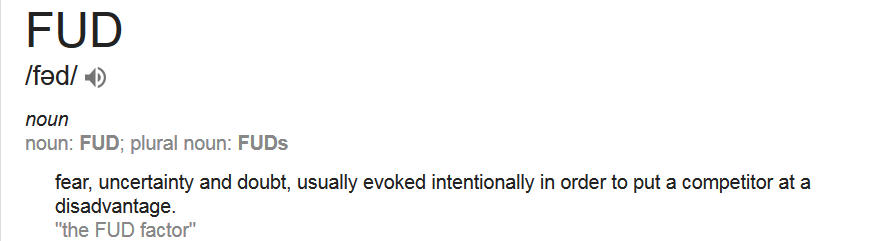
Googling the word FUD does certainly explains clearly the meaning and intention of this oft used word in the Oracle Licensing space.


Purpose of this Blog

  • The purpose of this blog is to provide customers with information along with GUIDANCE when it comes to certification, support, and licensing of Oracle on VMware vSphere
  • This information along with GUIDANCEis based on the experience and knowledge that VMware and proponents of its technology have acquired from over a decade during which VMware has successfully virtualized the majority of Oracle workloads on vSphere
  • This blog does not provide ANY legal advice concerning a customer’s license or support agreement with Oracle or any other third party.
  • Rather, this blog is intended to help customers understand the issues and be better prepared for optimal licensing interaction with Oracle and third-party vendors.

In addition to the blog, please refer to the Oracle on vSphere Certification, Support and Licensing Guide 2017


Oracle License Audit

Having put these myths to rest, let’s talk about the “Oracle License Audit” process. Many horror stories have been echoed in the hallways of IT and around water coolers but the key thing to keep in is “Yes, we need to take that seriously but no reason to be scared about it!!! , it’s just another software audit”.


The key mantra is to be “Fully prepared for it with all relevant artifacts to defend the audit”.

We have well established beyond any reasonable doubt in the previous blog post that Oracle licensing is not Memory, Storage, Cluster, vCenter or Network based, it’s either User based (Named User Plus) or Processor(Socket in case of SE2 or cores in case of EE edition).

Oracle licensing DOES NOT change , whether you run Oracle workloads on a

  • Classic vSphere environment connected to a NAS or SAN datastore
  • Hyper-Converged Infrastructure solution vSAN
  • Oracle workloads on VMware Cloud e.g. VMware Cloud on AWS


Continue reading

Posted in Oracle | Comments Off on Oracle on VMware Hybrid Multi-Clouds – Preparing for an the Oracle Audit

VMworld 2017 Oracle Customer Bootcamps

VMworld 2017 Oracle Customer Bootcamps

On a mission to arm yourself with the latest knowledge and skills needed to master application virtualization?

reading book

VMworld Customer bootcamps can get you in shape to lead the virtualization charge in your organization, with Instructor-led demos and In-depth course work designed to put you in the ranks of the IT elite.

Oracle on vSphere
The Oracle on VMware vSphere Bootcamp will provide the attendee the opportunity to learn the essential skills necessary to run Oracle implementations on VMware vSphere. The best practices and optimal approaches to deployment, operation and management of Oracle database and application software will be presented by VMware expert Sudhir Balasubramanian who will be joined by other VMware and Industry Experts.

This technical workshop will exceed the standard breakout session format by delivering “real-life,” instructor-led, live training and incorporating the recommended design and configuration practices for architecting Business Critical Databases on VMware vSphere infrastructure. Subjects such as Real Applications Clusters, Automatic Storage Management, vSAN and NSX will be covered in depth.

Learn More

https://www.vmworld.com/en/us/learning/sessions.html?mid=9592&eid=CVMW2000001358867&elqTrackId=ac4f78fd201d4b8ea8c06c94903ec64e&elq=a30d659ad2934a969e912b357d9624d2&elqaid=9592&elqat=1&elqCampaignId=4153

Details

Cost: $725 / seat

Schedule:
Saturday August 26, 2017
8:00am to 5:00pm
(registration opens at 6:30am)

Location:
Mandalay Bay, South Convention Centre
3rd Floor Jasmine Rooms

Registration

Be sure to add the Bootcamp in step 4 of your VMworld conference registration, under Educational Offerings, after you’ve selected your conferences pass.

Registration is open, seating is limited! Lunch and breaks provided.

Looking forward to seeing you all there!

Posted in Oracle, VMware Hybrid Cloud | Comments Off on VMworld 2017 Oracle Customer Bootcamps